How to Play WoW Forever on Phone
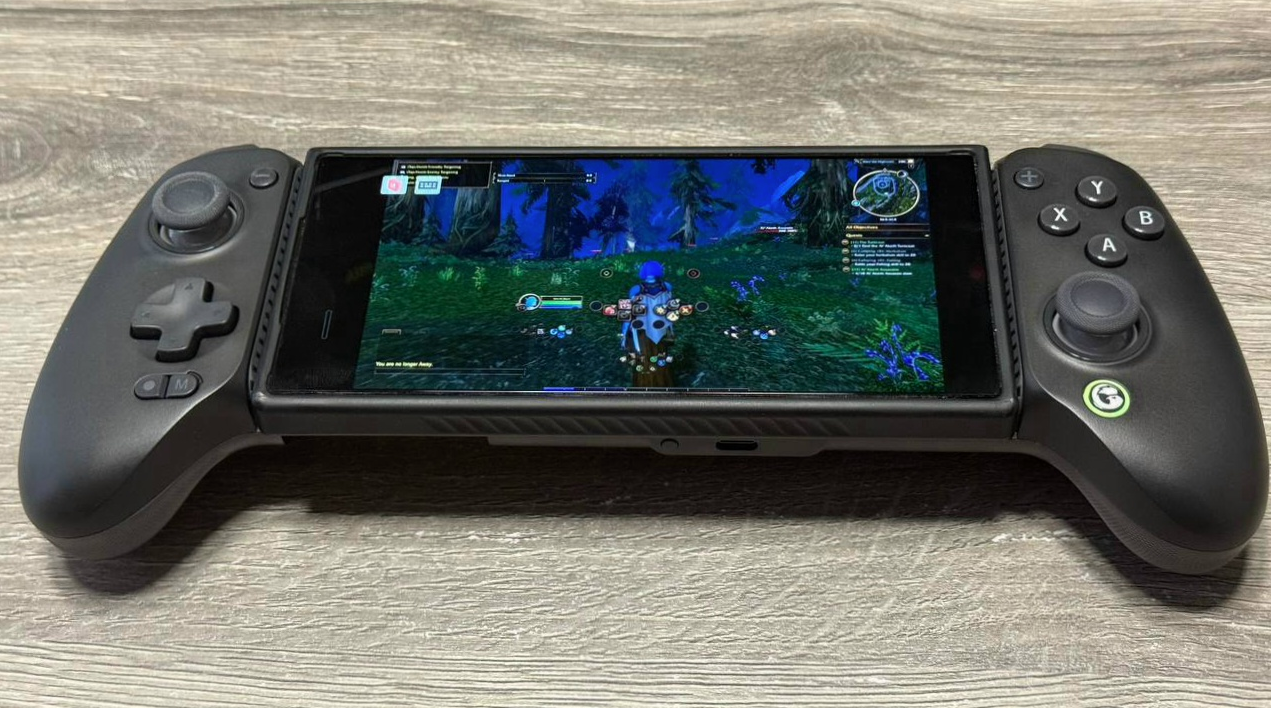
You can play WoW Forever on your phone today, and it isn't a cut-down mobile port. Your Windows PC runs World of Warcraft: Forever, Parsec streams it to an Android phone, and a GameSir G8+ controller holds the phone. Your account, characters, addons and settings are the same ones you use at your desk, now on the couch or anywhere with a decent connection.
This guide covers the whole setup, plus the parts that don't work well. Streaming adds latency, uses a lot of battery and data, and leaves your PC reachable from outside your home. Read the limitations section before you take your main into a Mythic key from the sofa.
Launch note: WoW Forever launches November 4, 2026. The menu paths below come from the Gamepad UI (Beta) and the current Controller Forever release, so they may change. Items marked ⚠️ couldn't be confirmed at the time of writing.
What You Need to Play WoW Forever on Phone
Here's the short list: a Windows PC that already runs Forever well, an Android phone, a GameSir G8+ Bluetooth controller, and free Parsec and GameSir apps.
Windows PC (the Parsec host)
Windows 10 or 11. Parsec hosting and its virtual gamepad drivers are Windows-only. A Mac host won't pass your controller through.
A PC that holds a steady 60 fps in WoW Forever at the resolution you'll stream. ⚠️ Blizzard hasn't published Forever's official minimum specs yet, so check them when they appear.
A GPU with a hardware encoder: NVIDIA NVENC, AMD VCN/AMF or Intel Quick Sync. ⚠️ Parsec's compatibility page lists NVIDIA GTX 10-series+ and Intel 11th-gen+ for H.265. AMD isn't on the preferred list, so test it yourself if you're on Radeon.
Wired Ethernet to your router. This makes a bigger difference than any other item here.
Android 9 or newer with OpenGL ES 3. That's Parsec's stated requirement for its Android client.
120–215 mm long, which is the G8+ clamp range. That covers most phones and some small tablets and foldables. ⚠️ Measure your phone against the spec on the box.
On an iPhone? Parsec has no iOS client. Jump to the iPhone appendix.
GameSir G8+ Bluetooth: get the right model
Several controllers carry the "G8" name, and only one fits this setup:
Model | Connection | Use it for this guide? |
|---|
G8 Galileo | Wired USB-C plug, mobile only | No |
G8+ MFi | iPhone-focused, mobile only | No |
G8+ Bluetooth (G8 Plus) | Bluetooth 5.3 to phones; USB-C or 2.4 GHz dongle to PC | Yes |
The G8+ Bluetooth has Hall-effect sticks and triggers, which resist drift, and two back buttons, which give you extra bind slots. Its full-size grips are also comfortable over long sessions.
Accounts and apps
A Battle.net account with Forever access and the Battle.net Authenticator turned on.
A free Parsec account with two-factor authentication turned on. Sign into the same account on the PC and the phone.
The GameSir app on Android, for firmware updates, dead zones and back-button remaps.
GameSir G8+ Setup on Android
Charge it and pair it in Android mode (yellow LED)
Charge the G8+ fully over USB-C. A normal 5 V phone charger works.
With the controller off, hold A + Home. The Home LED blinks yellow quickly.
On your phone, go to Settings → Bluetooth → Pair new device and choose GameSir-G8+.
A solid yellow LED means you're connected. After this, a short press on Home powers it on and reconnects.
If the LED won't fast-blink, hold the pairing button on the bottom for 2 seconds.
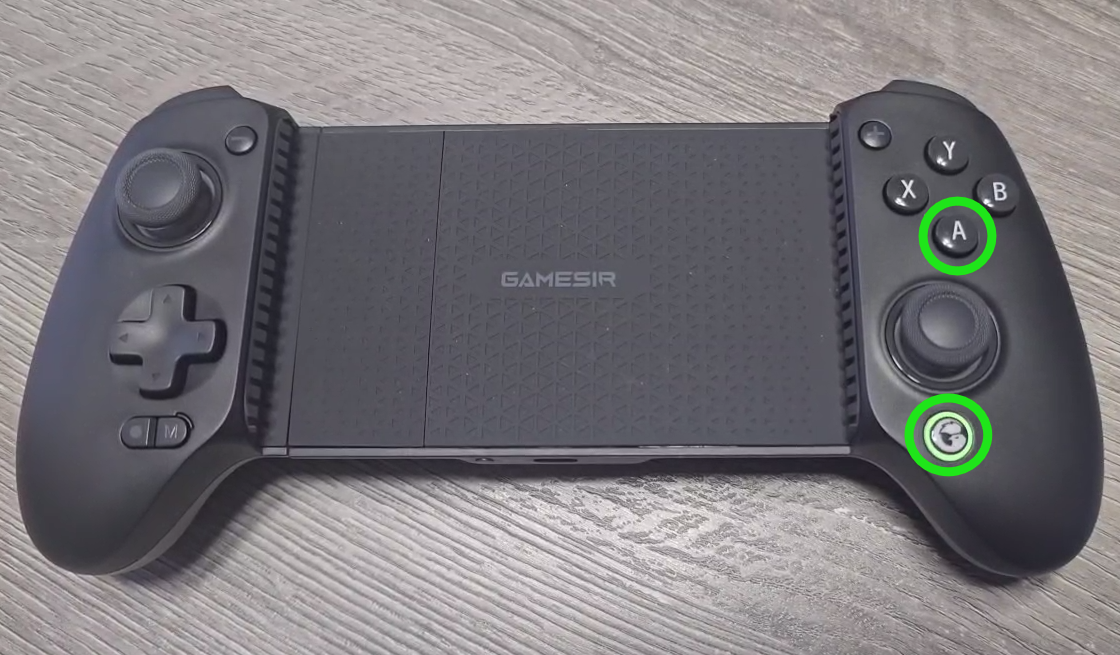
G8+ LED colors and modes
Most problems with this setup come from the controller being in the wrong mode. For Parsec on Android, use yellow (Android) mode.
LED color | Mode | How to enter (controller off) |
|---|
Yellow | Android ✅ | A + Home |
Green | PC (2.4 GHz receiver or USB-C) | X + Screenshot, or plug in USB-C |
Dark blue | DS4 mode (iOS / PC Bluetooth) | B + Screenshot |
Cyan | G-Touch (screen-tap mapping) | Avoid with Parsec |
Fast blinking means pairing, slow blinking means reconnecting, and solid means connected.
Update the firmware first. It fixes known pairing and input bugs.
Set the stick dead zone to about 3–8%. That's enough to stop drift without making steering feel mushy.
Remap the back buttons L4 and R4 to inputs Parsec passes through, such as L3/R3. Controller Forever can also bind L4/R4 directly (see below). ⚠️ Check that your remap is still there after you power the controller off and on.
Leave turbo and macros off. Blizzard's rules are one keypress, one action.
Clamp tip: take off thick cases and MagSafe rings, center the phone so the camera bump clears the clamp, and keep the phone's USB-C port reachable for a short right-angle charging cable.
Parsec Host Setup for WoW Forever (Windows)
Install Parsec and enable hosting
Download Parsec for Windows from parsec.app. Choose the Shared / per-machine install so Parsec runs as a service and can show the Windows lock screen.
Sign in, open Settings → Host, and check that Hosting Enabled is on.
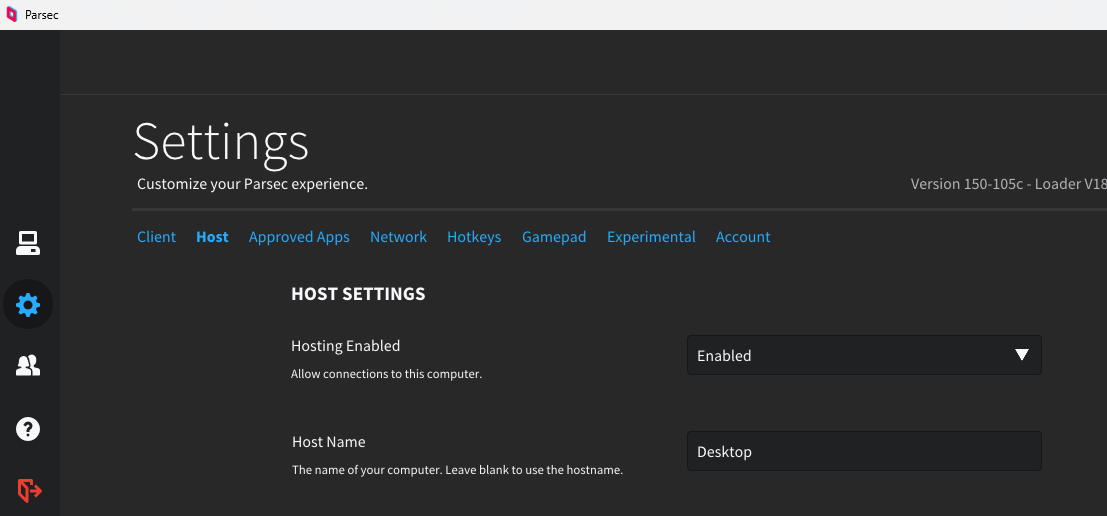
Best Parsec host settings for phone streaming
Setting | Recommended | Why |
|---|
Resolution | Fixed 1920×1080 or Keep Host Resolution | The default "Use Client Resolution" can force odd phone aspect ratios onto your desktop |
Bandwidth Limit | 20–30 Mbps home Wi-Fi · 8–12 Mbps mobile data | The default of 10 Mbps looks soft at 1080p |
H.265 (HEVC) | On (client side) | Better quality per Mbps. Falls back to H.264 |
Parsec Virtual USB Gamepads | Enabled, latest VUSB driver installed | Required so your phone's controller appears on the PC |
Virtual Gamepad Type | Xbox 360 | The most compatible option. WoW sees a standard XInput pad |
Fallback To Virtual Display | On (install the virtual display driver) | Lets you connect with the monitor off |
After changing gamepad settings, click Restart at the top of Parsec.
Keep the PC awake and WoW stream-friendly
Windows: Settings → System → Power → Sleep: Never (when plugged in). It's fine to let the screen turn off. Turn off USB selective suspend if the pad drops after you've been idle.
WoW Forever graphics: Windowed Fullscreen, VSync off, frame rate capped at 60 fps to match the stream. UI scale gets its own section below.
Don't remove your Windows password for convenience. A per-machine Parsec install lets you unlock from the phone with the Parsec on-screen keyboard. ⚠️ That keyboard works unevenly on the experimental Android client.
Parsec Android Client: Connect and Pass Your Controller Through
Connect from your phone
Install Parsec from Google Play and sign in with the same account as the PC.
Tap your PC in the computer list, then tap Connect.
Open the overlay and check the stream: hardware decoder, H.265 on, 60 fps. ⚠️ The gesture that opens the overlay differs between app versions.
Parsec's own documentation calls the Android client experimental. It says "some controllers may not behave correctly," and some phones show extra latency. Expect a few rough edges.
Gamepad passthrough: check it works
Your inputs take this path:
G8+ (yellow, Bluetooth) → Android → Parsec client → network → Parsec host → virtual Xbox 360 pad → WoW Forever
Press any button on the G8+ while you're streaming. Then, on the host, run joy.cpl. You should see an Xbox 360 controller listed.
If the pad doesn't appear:
Check that the LED is yellow, not cyan (G-Touch) or blue (DS4).
Press a button after you connect. Parsec sometimes creates the virtual pad only on the first input.
Reinstall the latest VUSB driver, set the type to Xbox 360, and Restart Parsec.
Close Steam, DS4Windows and reWASD on the host. They grab pads or create duplicates.
Unpair the G8+, re-pair it, and update its firmware.
Still nothing? Try a different controller to find out whether the problem is the G8+ or the phone and Parsec.
WoW Forever Setup: Gamepad Mode and UI Scale for Phone
Do this part from the phone, through Parsec, not at your desk. The game looks very different on a 27-inch monitor than on a 6-inch screen, and you want to tune it for the screen you'll actually play on.
Step 1: Enable gamepad mode
WoW Forever has its own built-in controller interface. Turn it on after Parsec is connected and the virtual pad shows up in joy.cpl.
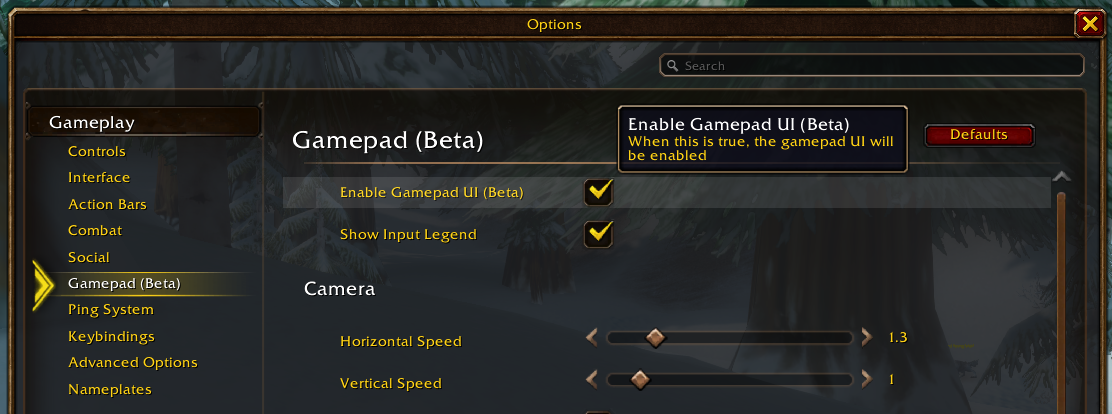
At login or character select: Menu → Options → System → Gamepad (Beta) → tick Enable Gamepad UI (Beta).
In game: Esc → Options → Gameplay → Gamepad (Beta) → tick Enable Gamepad UI (Beta).
Check it works: press any button on the G8+. On-screen prompts should switch to controller icons, and the left stick should move your character.
Tune the camera in the same Gamepad (Beta) menu: lower the look sensitivity a notch or two. Streaming adds a little delay, and a fast camera feels floaty over Parsec. ⚠️ Exact option names may differ in the launch build.
Leave the in-game stick dead zone at its default. You already set dead zones in the GameSir app, and stacking both makes steering sluggish.
What you get by default:
Four hotbar sets of 8 buttons (D-pad + face buttons), paged with LT, RT and LT+RT. That gives you about 28 customizable binds.
Unmodified face buttons are mostly reserved for Jump, Cancel/Back, Interact and Menu.
Hold LT for friendly targeting, where the D-pad moves through party frames. Hold RT for enemy targeting, and aim with the right stick.
Some menus still need a mouse during the beta. Parsec's virtual mouse or the phone's touchscreen covers them.
Step 2: Set UI scale for a comfortable size on your phone
A 1080p stream shrunk onto a phone makes the default UI tiny. Bump it up until you can read cooldowns and debuffs without squinting.
Open Esc → Options → System → Graphics. ⚠️ In some builds the setting sits under Gameplay → Interface instead.
Tick Use UI Scale, then drag the UI Scale slider.
Click Apply and check the result on your phone, not on the PC monitor.
Starting points by screen size:
Phone screen | UI Scale | Also try |
|---|
6.1–6.4" (small phones) | Max on the slider (about 1.15) | Action bar icons at 125–150% in Edit Mode |
6.5–6.9" (most phones) | 1.05–1.15 | Action bar icons at 110–125% |
7.5"+ (foldables, small tablets) | 0.9–1.0 | Default icon sizes are usually fine |
⚠️ These are starting points, not exact values. Adjust by eye in 0.05 steps.
Step 3: Fine-tune the elements you actually read
UI scale enlarges everything at once. These settings let you enlarge only what matters:
Edit Mode (Esc → Edit Mode): select your action bars, party frames and cast bar, then raise their Icon Size or Frame Size. Keep combat-critical elements near the center of the screen.
Mind the edges: move frames away from the screen corners. Rounded corners, the camera cutout and the Parsec overlay can hide anything placed right at the edge.
Chat text: right-click the chat tab → Font Size → 16 or 18.
Nameplates: Options → Gameplay → Interface → Nameplates, turn on Larger Nameplates so you can pick out enemies in a pack. ⚠️ Option location may differ in Forever.
Hide clutter: turn off frames you don't use on the phone (extra bars, the micro menu) to free up screen space.
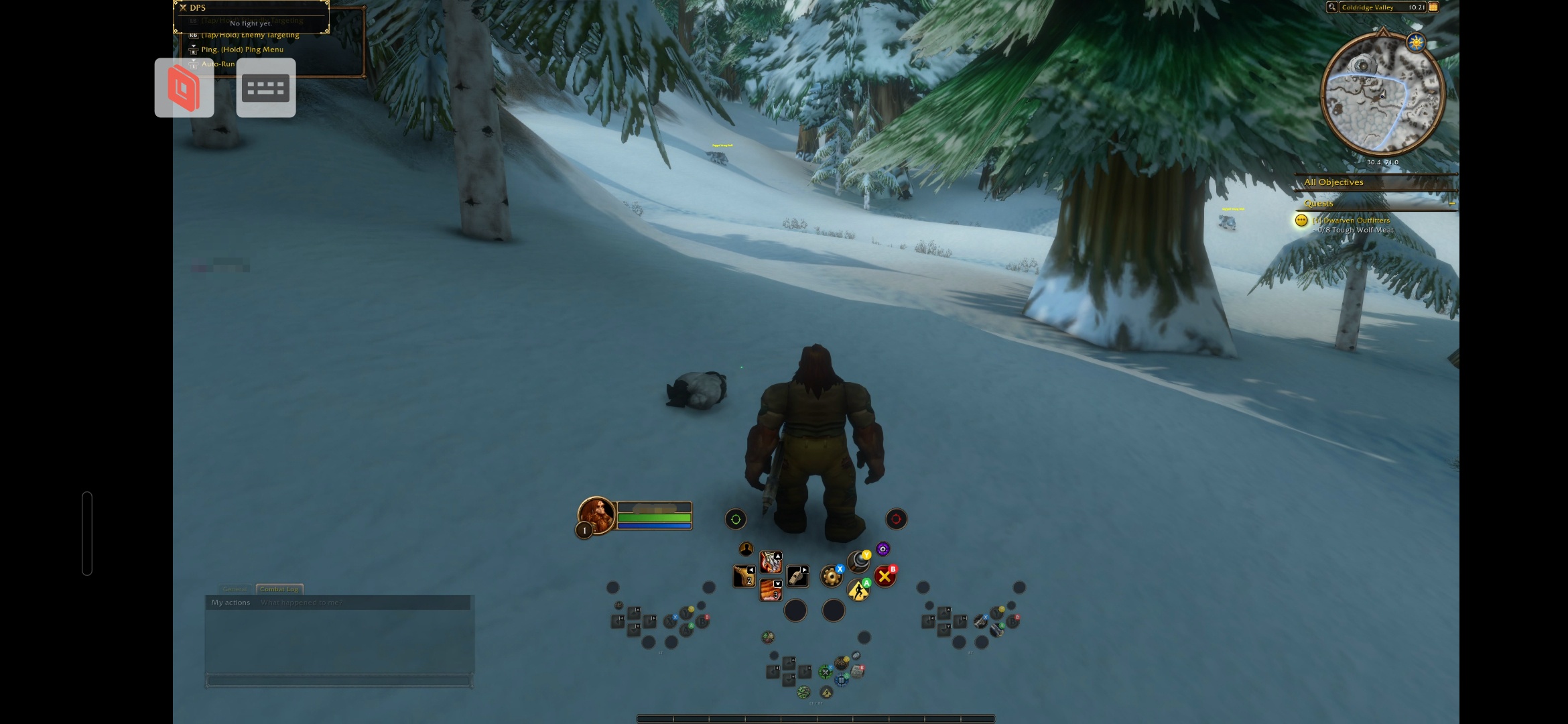
(UI Scale OFF)
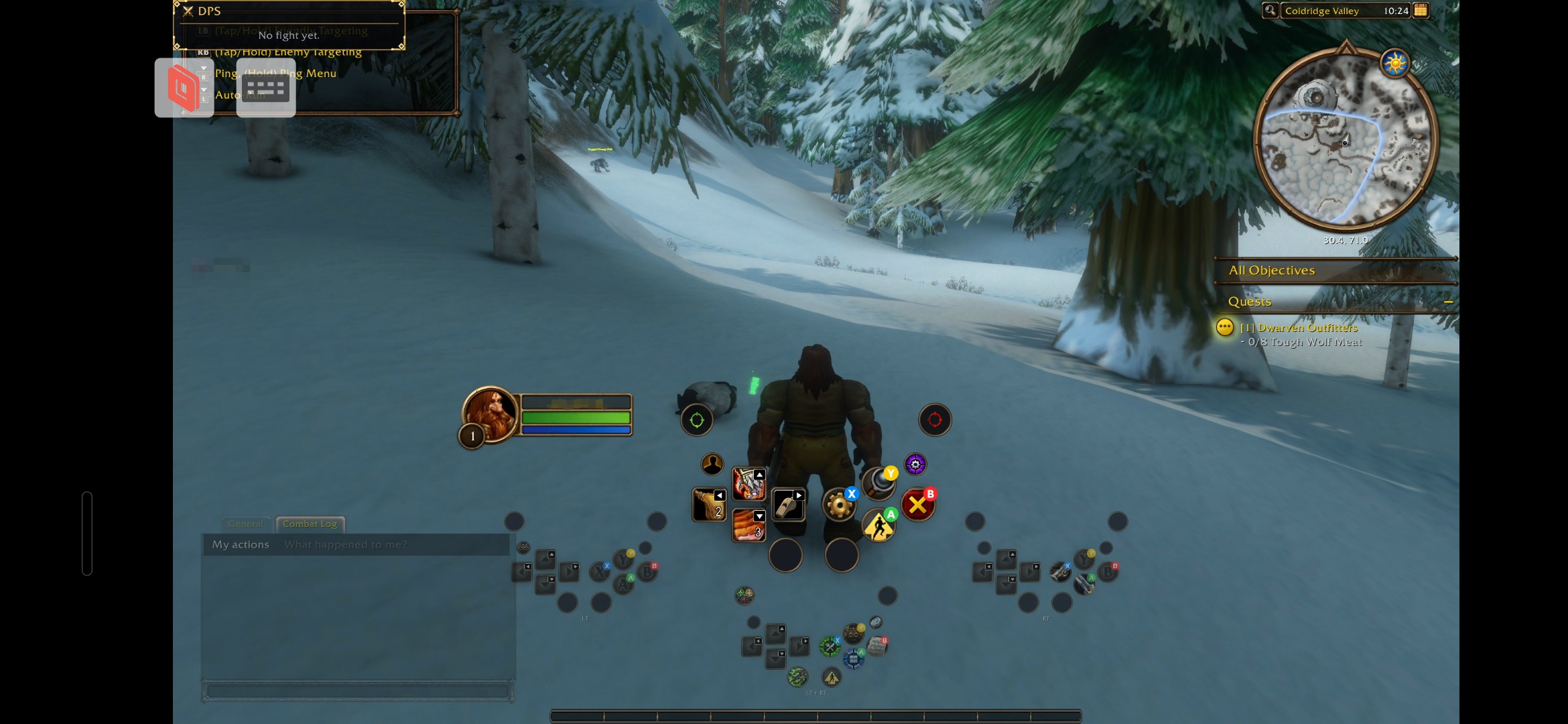
(UI Scale 95%)
Controller Forever Addon: Install and Setup
Controller Forever (by Diail) is a free addon for WoW Forever only. It sits on top of the native Gamepad UI instead of replacing it, and you can switch any part of it off to hand control back to Forever. It needs the Gamepad UI turned on first.
Install Controller Forever
Get it from CurseForge, either in the CurseForge app or as a manual download into your Forever AddOns folder. Make sure the version you pick is the Forever one.
Restart the game or /reload.
Open the menu with LT + Select, by holding L3 + R3, or by typing /cr menu.
Turn on Compact Mode and Xbox symbols
Choose Compact Mode (the default). It's the cleanest layout on a small screen. The other options are Final Fantasy Layout and Off, which goes back to stock Forever bars.
Set button symbols to Xbox, because Parsec presents your G8+ to the PC as an Xbox 360 pad.
If the Controller Forever bars look small after your UI scale change, enlarge them in its own settings rather than pushing UI Scale higher.
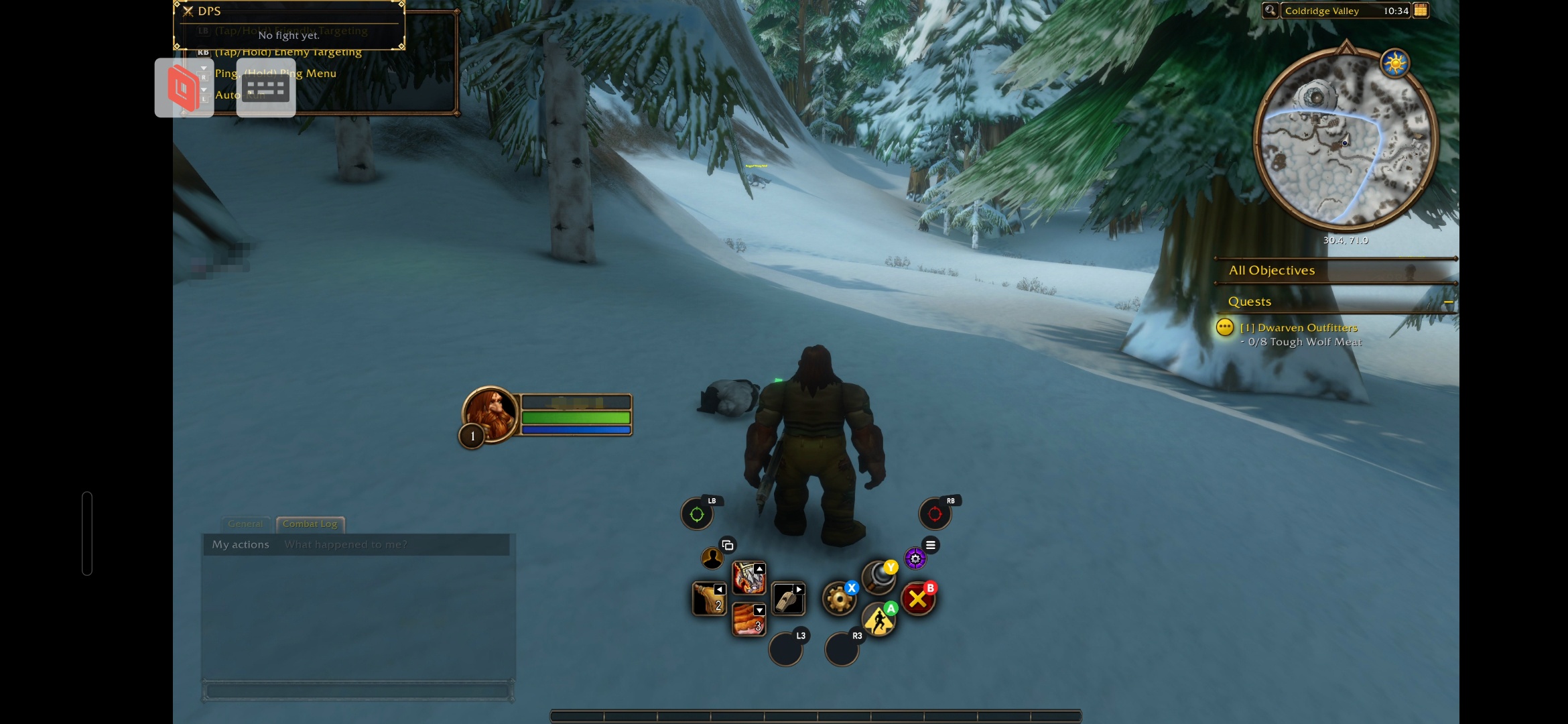
This is the single most useful thing to know when you bind spells on a controller.
Your left thumb does two jobs: it steers with the left stick and presses the D-pad. It can't do both at once. The moment you press a D-pad button, you stop moving.
Your right thumb presses A / B / X / Y. You can hit those while your left thumb keeps running.
So split your spells like this:
Button group | Thumb | Bind here | Examples |
|---|
A / B / X / Y | Right (left thumb keeps steering) | Abilities you can use while moving: instants, interrupts, defensives, movement skills, HoTs and shields | Ice Lance, Fire Blast, Blink, Corruption, Moonfire, Rejuvenation, Power Word: Shield, Renew, Kick, Counterspell, Ice Block, Disengage, Sprint, Dash |
D-pad (arrows) | Left (you stop moving) | Abilities that need you to stand still: cast-time spells and channels | Frostbolt, Fireball, Shadow Bolt, Chaos Bolt, Wrath, Flash Heal, Holy Light, Regrowth, resurrection, mount, hearthstone, food and drink |
Why it matters:
Kiting and dodging: you can run out of fire and still interrupt, shield or blink without breaking your stride.
No wasted casts: a cast-time spell on the D-pad naturally stops you, so you never start a Frostbolt while running and have it fail.
Melee classes are mostly instants, so put your core builders and spenders on the face buttons and park situational or rarely used abilities on the D-pad.
Casters who can cast while moving (talents or buffs that allow it) can move those spells to face buttons later. Start with the basic split and adjust once you know your build.
⚠️ Spell names are examples from current WoW classes. Check them against Forever's launch class list.
WoW Forever controller keybind framework (A/B/X/Y + LT/RT layers)
Controller Forever lets you rebind A/B/X/Y, D-pad, LB/RB, L3/R3, Start/Select, the Xbox button and the L4/R4 back buttons on every LT/RT layer. Here's a starting framework built on the golden rule above. Change it to suit your class.
Layer | A / B / X / Y (use while moving) | D-pad (stand still) | Use it for |
|---|
Base (no trigger) | Jump / Cancel / Interact / Menu (Forever defaults) | Main cast-time spells, 4 binds | Movement and your main filler casts |
LT held | Instant rotation spells, HoTs, shields | Friendly targeting / party frames | Damage and healing on the move |
RT held | Interrupt, defensive, cooldowns, movement skill | Enemy targeting | Burst and reactive buttons |
LT + RT | Instant utility (taunts, dispels, crowd control) | Mount, hearthstone, food, resurrection | Rarely used buttons and anything that needs you to stop |
L4 / R4 (G8+ back buttons) | Extra modifier or a dash/escape | Not used | Bind via Controller Forever's Set Up row or the GameSir app |
Sticks | L = move, R = camera / Target Swinger | Not used | L3 / R3 free for autorun or target nearest |
Some tips for the layout:
Put your interrupt and main defensive on the same face button and layer every time, so the muscle memory carries over between characters.
L4 and R4 are pressed with your middle fingers, so both thumbs stay free. They're the best spot for an emergency escape (Blink, Disengage, Dash).
Targeting: Controller Forever adds tap RT / tap LT to cycle enemies and friends, and Target Swinger on the right stick. ⚠️ Test how tapping a trigger works alongside holding it as a layer modifier for your build.
Healers can try Controller Forever's healer D-pad modes for party-frame targeting.
Keybind Swap / Gear Swap saves up to 3 sets per character, for example solo, dungeon and PvP.
Auto-Fill My Spells can lay out a first draft for you. It's experimental and doesn't know the golden rule, so move instants to face buttons and cast-time spells to the D-pad afterwards.
Limitations of Playing WoW Forever on Phone
Issue | What to expect | What helps |
|---|
Latency | Fine for questing, leveling, gathering and normal dungeons. Hard for high keys, raid mechanics and arena | Ethernet host, 5 GHz phone, hardware decoder, H.265 |
Battery and heat | Streaming drains a phone fast. ⚠️ G8+ pass-through charging to the phone isn't documented | Power bank, short right-angle cable, keep the phone out of direct heat |
Mobile data | About Mbps × 0.45 = GB per hour, so 10 Mbps ≈ 4.5 GB/h and 15 Mbps ≈ 6.8 GB/h | 8–12 Mbps away from home, 720p on weak LTE |
Small screen | Tooltips, debuffs and ground effects are harder to read | UI Scale, Edit Mode icon sizes, larger nameplates |
Security | Your PC can be reached from outside your home | Battle.net Authenticator, Parsec 2FA, keep your Windows password, no public Wi-Fi without a VPN, never share host access |
Uptime | It only works while your PC is on and awake | Sleep: Never. Wake-on-LAN is possible but takes extra setup |
Beta software | The Gamepad UI is in Beta and Parsec Android is experimental | Keep the mouse/touch fallback and update often |
Note that some VPNs block Parsec's peer-to-peer connection. Parsec usually handles NAT traversal itself. If it hangs on "connecting," check that UPnP is on in your router.
Quick troubleshooting
Symptom | Fix |
|---|
Black screen | Turn on Fallback To Virtual Display, use Windowed Fullscreen, update GPU drivers |
A/B swapped or wrong prompts | G8+ in yellow mode, Xbox 360 pad type, Steam Input off |
Double inputs | Close Steam, DS4Windows and other remappers, then restart Parsec |
Blocky picture | Raise Bandwidth Limit, or drop the host to 720p |
UI too small or too big | Adjust UI Scale while looking at the phone, then fine-tune in Edit Mode |
Random disconnects | Sleep: Never, exclude Parsec from Android battery optimization, stay on one Wi-Fi band |
iPhone Appendix: WoW Forever Without Parsec
Parsec has no iOS or iPadOS client, and that includes its Safari web client. On an iPhone, use one of these instead:
Moonlight + Sunshine: Sunshine is a free Windows host and Moonlight is the iOS client. It's low latency and takes a little more setup.
Steam Link: add WoW Forever (or Battle.net) to Steam as a non-Steam game, then stream with the Steam Link app.
Pair the G8+ in DS4 mode (B + Screenshot, dark blue LED), or use an MFi controller. On iPhone, the GameSir app's remapping and L4/R4 customization don't work. The Gamepad UI, UI scale tips, Controller Forever and the network advice above all still apply.


 WoW Forever